

QR code ordering went from novelty to normal in about two years, and then the backlash arrived. The truth is in between: it's excellent in some venues and irritating in others. This guide covers where scan-to-order genuinely helps, where it hurts, and how to set it up so it feels like service rather than a cost-cutting exercise.
Key takeaways
- QR ordering works best where waiting is the pain: busy bars, casual dining, lunch counters, patios.
- Never require an app download — the menu should open straight in the browser.
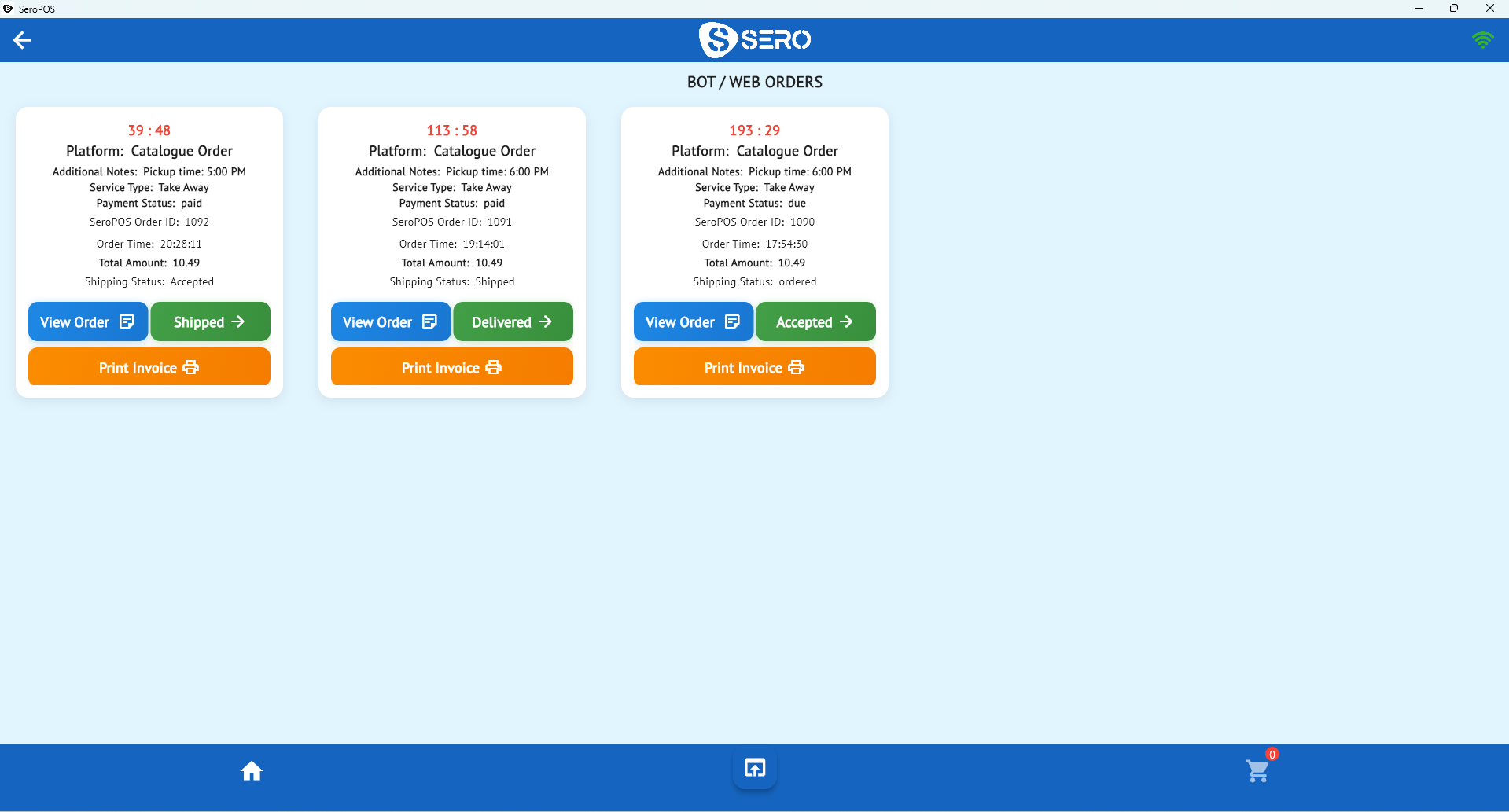
- Orders should land in your normal order queue, not on a separate tablet nobody watches.
- Keep printed menus available; QR is an option, not a replacement for hospitality.
- SeroPOS includes QR ordering and an online catalogue with checkout, commission-free.
How it works
- You generate a QR code from your POS, tied to your live menu (and optionally to a specific table).
- The guest scans it with their phone camera — no app, no login wall.
- They browse the menu, customize items with the same modifier groups your staff use, and place the order.
- The order arrives in your order queue and fires to the kitchen printer or kitchen display.
- Payment happens either on the phone at checkout or at the counter, depending on how you configure it.
Because the menu is generated from the same catalogue as your register, prices and availability are always current — no reprinting, no "sorry, we're out of that" after the fact.
Where QR ordering genuinely wins
| Venue type | Why it works |
|---|---|
| Busy bars & pubs | Guests reorder without fighting for attention at the bar |
| Casual dining & cafés | Reduces queue at the counter during lunch rush |
| Patios & large floors | Long walks are the enemy of table turns |
| Takeaway counters | Order while queuing, collect when ready |
| Food halls & kiosks | No staff needed at every stall |
The common thread: waiting is the customer's main complaint. If guests are frustrated by wait times, QR fixes something real. If they come to you for the service experience, it removes something they value.
Where it doesn't
- Fine dining. The server is part of the product.
- Older demographics. Adoption is measurably lower; always keep an alternative.
- Bad connectivity. If your basement bar has no signal, scan-to-order fails at the worst moment.
- Complex menus that need explanation. Some menus need a human.
Setting it up well
1. Generate and place your codes. Table tents, counter cards, box stickers, window decals for pickup. Make sure each code is clean, large enough to scan from a seated distance, and not laminated in a way that reflects light.
2. Get your menu right first. A QR menu exposes every gap in your product setup — missing photos, unpriced options, badly named items. Fix your modifier groups before you publish.
3. Decide on payment. Pay-at-checkout reduces walkouts and speeds turns; pay-at-counter feels more traditional and keeps upsell conversation alive.
4. Route the orders properly. They should appear in the same queue as everything else so nobody has to monitor a second screen.
5. Brief your staff. The most common failure is guests scanning, ordering, and then sitting confused because nobody acknowledged it. Someone should still greet the table.
6. Keep paper menus. Always.
Design details that lift conversion
- Photos on the top ten items. Scan-to-order is a visual medium.
- Sensible category order. Put what people actually buy first, not what your kitchen finds interesting.
- Suggest add-ons at the item, not the cart. "Add garlic dip?" next to the wings converts better than a generic upsell screen.
- Short checkout. Name and phone. Nothing else unless you need it.
- Show a clear confirmation and prep time. Guests need to know the order landed.
Measuring whether it's working
Track these before and after rollout:
- Average per cheque — self-ordering often lifts it through consistent add-on prompts.
- Table turn time in the affected section.
- Share of orders via QR — under 10% after a month means placement or pitch needs work.
- Order accuracy complaints — should go down, since the guest types it themselves.
Your daily sales reports carry most of this already.
QR versus your other channels
QR ordering is one of several owned channels — alongside your online menu and, for pizzerias, AI phone ordering. All of them are commission-free, unlike third-party delivery apps. The strategic goal is the same: every order that comes through a channel you own keeps its full margin. See commission-free online ordering for the wider picture.
It's all included in SeroPOS — no per-order fees. Download the app and generate your first QR code during the 14-day free trial.