

Kitchen display systems used to mean buying dedicated hardware from your POS vendor at a dedicated hardware price. A modern kitchen display system app removes that: any tablet or spare monitor becomes a kitchen screen, and the cost is whatever the tablet cost.
Key takeaways
- A KDS app runs on standard tablets or a monitor on a PC — no proprietary kitchen hardware.
- Included in SeroPOS at $30–$50/month, alongside printed tickets if you want both.
- Station routing is the real win — each station sees only its own items.
- Ticket timestamps make speed measurable, turning opinions into staffing decisions.
- Always keep a printer fallback configured.
Why an app rather than a KDS terminal
The hardware in a purpose-built kitchen display is usually a sealed screen with a bump bar. Useful in a wet, greasy environment — but for most kitchens a tablet in a splash-resistant mount does the same job at a fraction of the cost, and can be replaced from any electronics shop on a Saturday.
| Vendor KDS hardware | KDS app on your tablet | |
|---|---|---|
| Screen cost | Often $600–$1,500+ | $200–$400 tablet, or a monitor you own |
| Monthly fee | Sometimes per screen | Included with SeroPOS |
| Replacement | Order from vendor | Buy locally today |
| Second station | Another full unit | Another tablet |
Setting it up properly
- Choose the screen. Bigger is better — cooks read it from a distance. A 15–24" monitor on a PC, or a 10"+ tablet.
- Mount it out of the splash zone, angled down, away from steam and direct heat.
- Route by station. Send oven items to the oven screen, fryer items to the fry station. This is the setting that changes kitchen flow most.
- Decide the bump method — touch is fine if hands are clean; a bump bar or keyboard suits a wet line better.
- Set colour thresholds so tickets change colour as they age.
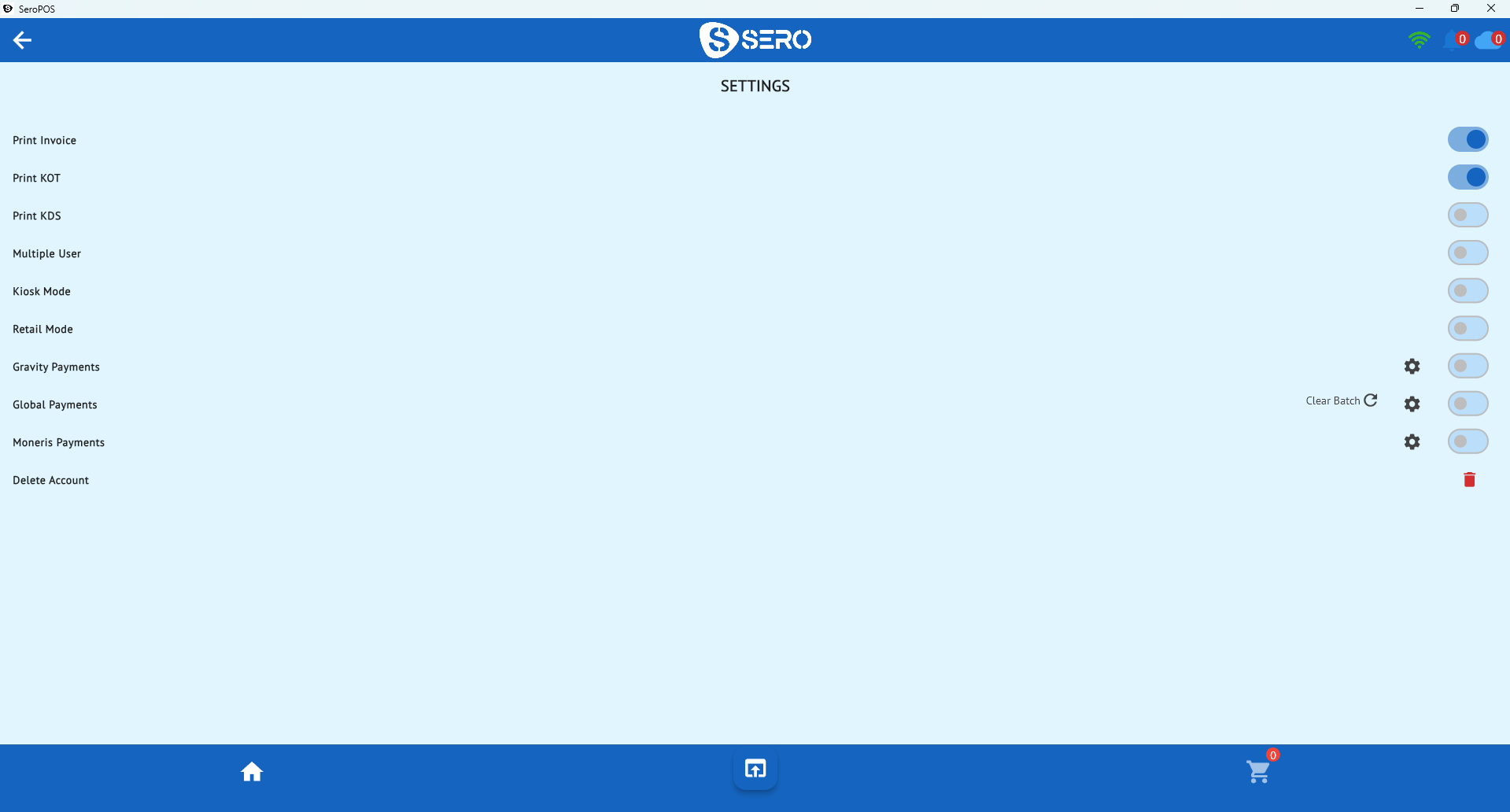
- Configure a printer fallback and rehearse switching to it.
What changes in the kitchen
Nothing gets lost. Paper falls, gets wet, blows off a rail. An unbumped ticket stays visibly on screen.
Modifications appear instantly. A guest adds a side after ordering; on paper that's a second ticket and a shouted explanation. On screen the order updates in place.
Timing becomes data. Every ticket carries an open time and a bump time, so "we're slow on Fridays" becomes "tickets average 14 minutes between 6:30 and 7:30 on Fridays" — a staffing decision instead of a feeling.
Complex orders stay legible. Nested modifiers — half-and-half pizzas, allergy notes, cooking temperatures — print consistently rather than in whatever handwriting was available.
Running both screen and paper
The best setups often aren't purely digital. A common pattern:
- Screen at the main line where most items are made
- Printer at a satellite station — dessert, bar, a separate prep area
- Printer as fallback for the night the tablet fails
SeroPOS supports both simultaneously, so this isn't an either/or decision.
Reading the numbers afterwards
Once you're capturing ticket times, review weekly rather than nightly:
| Question | Look at | Typical action |
|---|---|---|
| Are we slow overall? | Average ticket time by daypart | More prep before the rush |
| Which items drag? | Time by menu item | Re-engineer prep or the menu |
| When do we fall behind? | Ticket time by hour | Adjust the schedule |
Pair this with your daily sales reports and you can connect kitchen speed to revenue rather than treating them separately.
Habits that make it work
- Bump honestly — bumping early to clear the screen destroys the data and hides real problems
- Keep modifier text short — a screen full of essays is as bad as bad handwriting
- Fire in courses where relevant so a table's food lands together
- Review with the team, not at them — the data should improve the line, not police it
Where it fits with everything else
A KDS is one part of service flow. It works best with floor plans and table management so servers know what's ready for which table, and with online, QR and kiosk orders feeding the same queue as walk-ins rather than a separate tablet nobody watches.
All of it is included in one SeroPOS subscription. Download the app and try KDS on a spare tablet during the 14-day free trial — no credit card required.