

Paper kitchen tickets have run restaurants for a century, and they still work — until a ticket falls behind the pass, an order changes after firing, or you try to answer "how long are we actually taking?" A kitchen display system (KDS) replaces the paper with a screen and, more importantly, replaces guesswork with timestamps.
Key takeaways
- A KDS shows orders on-screen with live timers, and cooks bump tickets as they finish.
- Biggest wins: nothing gets lost, changes appear instantly, and ticket times become measurable.
- Runs on a standard tablet or monitor — no specialist hardware required.
- Keep a printer fallback configured for the night the screen dies.
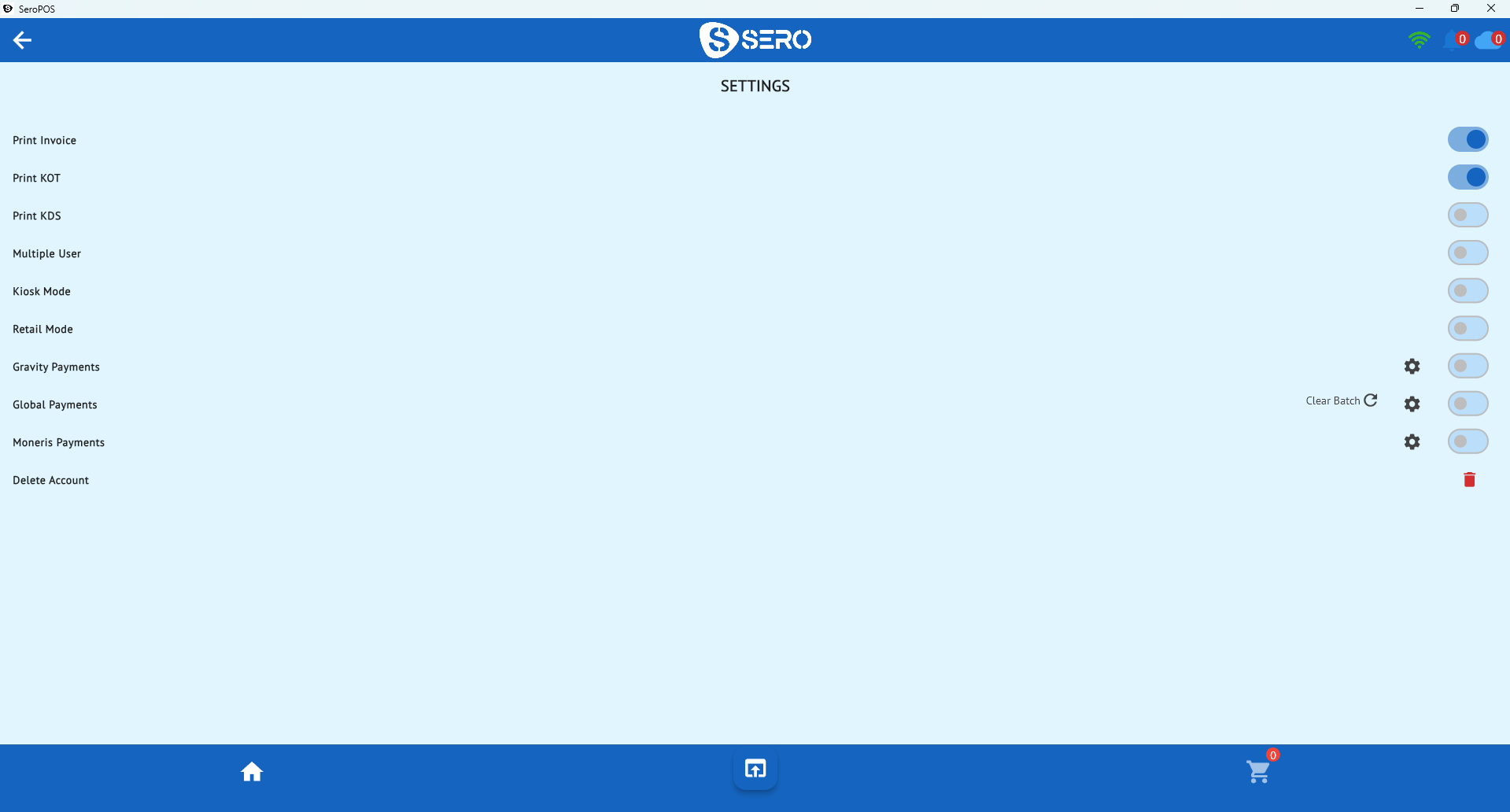
- SeroPOS supports kitchen tickets (KOT) and kitchen display together, per station.
What a KDS actually changes
Orders can't disappear. A screen doesn't blow off a rail or get soaked. Anything unbumped is still visibly waiting.
Changes arrive instantly. A customer adds fries after ordering; on paper that's a second ticket and a conversation, on screen the order updates in place.
Timing becomes data. Every ticket has an open time and a bump time, so "we're slow on Fridays" turns into "tickets average 14 minutes between 6:30 and 7:30 on Fridays" — a problem you can staff against.
Fewer remakes. Legible, consistent formatting beats handwriting and faded thermal paper, especially for complex modifiers like pizza half-and-half.
When paper is still fine
Being honest: a KDS is not mandatory. Paper works well when:
- You run a very small kitchen with one or two cooks who can see everything
- Your station is genuinely hostile to screens (heavy grease, direct heat, water)
- Your volume is low enough that nothing ever queues
- You need a hard backup — every kitchen should keep one
The right answer is often both: a screen on the main line, a printer at a satellite station.
Setting one up properly
- Choose the screen. A 15–24" monitor or a sturdy tablet. Bigger is better; cooks read it from a distance.
- Mount it out of the splash zone — above the pass, angled down, protected from steam.
- Route orders by station if you have more than one (pizza oven vs. fryer vs. cold prep).
- Set the bump method. Touch works if hands are clean; a bump bar or keyboard is more hygienic on a wet line.
- Configure a printer fallback and make sure a manager knows how to switch to it.
- Set timing thresholds so tickets change colour as they age.
Reading the ticket-time data
Once you're capturing times, three questions become answerable:
| Question | What to look at | Typical action |
|---|---|---|
| Are we slow overall? | Average ticket time by daypart | Prep more before the rush |
| Which items drag? | Time by menu item | Re-engineer prep or menu |
| When do we fall behind? | Ticket time by hour | Adjust the schedule |
The point isn't to police cooks — it's that "we get slammed at 6:30" becomes a staffing decision instead of a feeling.
Habits that make a KDS work
- Bump honestly. Bumping early to clear the screen destroys the data and hides real problems.
- Fire in courses where relevant, so a table's food lands together.
- Keep modifiers short and clear — a screen full of essay-length notes is as bad as bad handwriting.
- Review weekly, not nightly. Trends matter more than one bad Saturday.
The rest of the kitchen picture
A KDS is one part of service flow. It works best alongside a floor plan and table management so servers know what's ready for which table, and online and QR orders that land in the same queue as walk-ins rather than on a separate tablet nobody watches.
All of it is included in SeroPOS — see the restaurant features — and you can try the whole setup with a spare tablet during the free trial.
Download SeroPOS — 14 days free, no credit card required.