

Android is the pragmatic choice for a lot of small businesses: the hardware is cheap, the sizes are varied, and there's a good chance you already own a suitable device. Here's how to build a real till around an Android POS app — and what to check before buying a tablet for the job.
Key takeaways
- A 10"+ Android tablet plus an ESC/POS printer makes a complete till.
- Check Android version and update path — budget tablets lose app support fastest.
- Phones work brilliantly as second devices: markets, trucks, tableside, stock counts.
- Plan for connectivity; card payments need a network on any platform.
- SeroPOS syncs across Android, iOS, Windows and Mac, so you can mix devices.
What you can actually do on an Android till
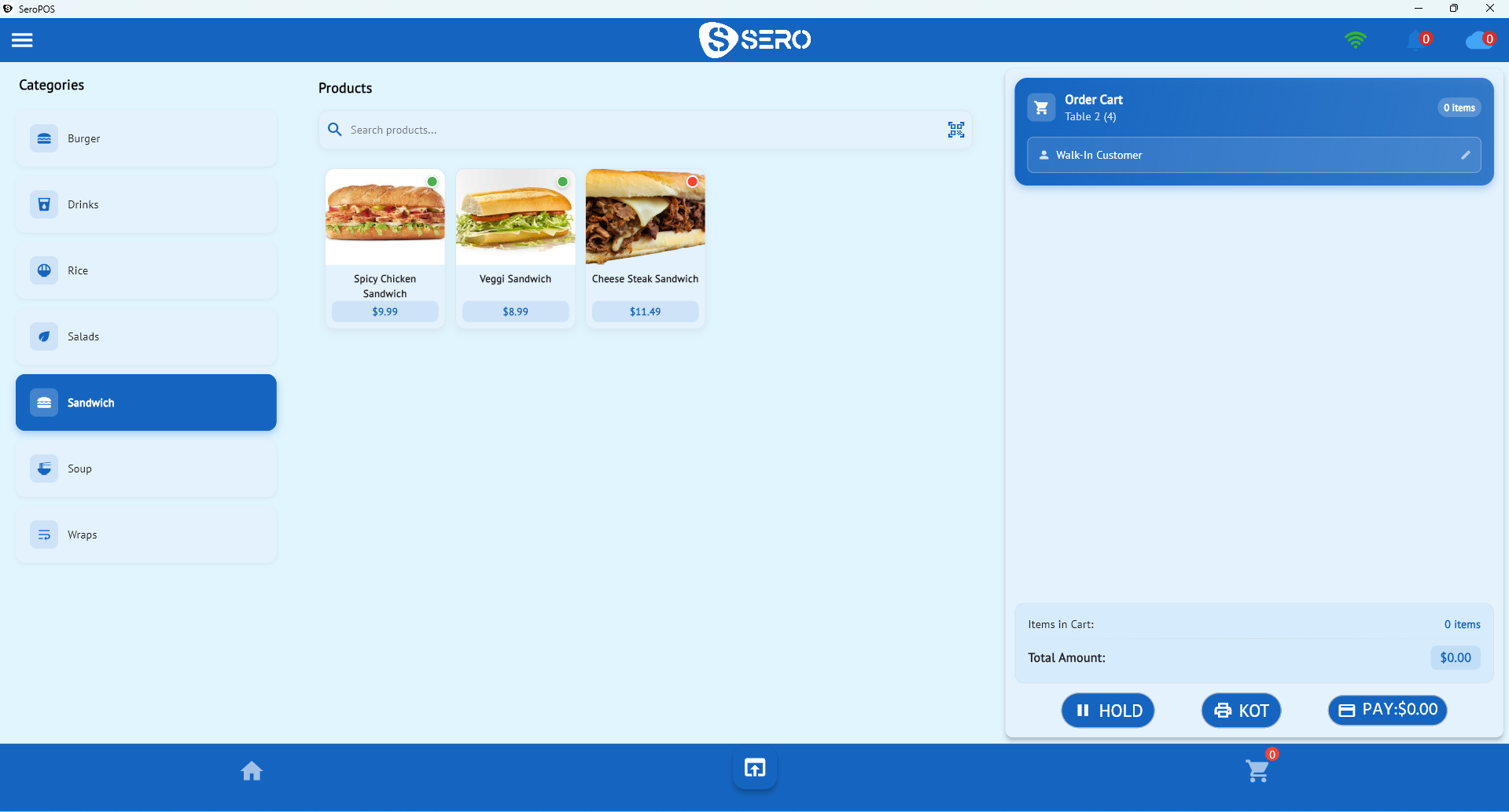
Everything a fixed terminal does: ring sales with modifiers, take card and cash, print receipts and kitchen tickets, scan barcodes, look up customers, redeem loyalty points, and run reports. The device is just the screen — the capability comes from the software and the peripherals you pair.
Choosing the tablet
| Spec | Minimum | Why |
|---|---|---|
| Screen | 10" (10.5"+ better) | Product grids need room |
| RAM | 3–4 GB | Smooth with many products |
| Android version | Current or one behind | Support lifespan |
| Storage | 32 GB+ | App, images, cache |
| Build | Decent chassis | It will be dropped |
The trap with Android is the $120 tablet shipping two-year-old Android with no update path. It works for six months and then apps start dropping support. Spend a little more for a mainstream model from a manufacturer with a stated update policy.
Pairing the hardware
- Receipt printer: USB or network ESC/POS. Network is more flexible when several devices print to one printer.
- Kitchen printer: Ethernet, positioned away from steam.
- Cash drawer: printer-driven is simplest.
- Barcode scanner: USB (with an OTG adapter) or Bluetooth.
- Payment terminal: from your processor; insist on integrated so amounts aren't keyed by hand.
Full guidance in the POS hardware guide.
Where Android genuinely shines
Markets, festivals and pop-ups. Cheap enough that taking it to an outdoor market doesn't feel risky, and cellular models keep working away from your Wi-Fi.
Food trucks. Compact, replaceable, and comfortable in a cramped service window.
Second devices. A phone in the owner's pocket for checking sales; a spare tablet for tableside ordering during a rush.
Stock counts. Walking the shelves with a tablet and a Bluetooth scanner beats a clipboard — see barcode inventory.
Tight budgets. When the choice is "cheap Android till" or "no system at all," the Android till wins easily.
Practical setup for a till device
- Disable auto-lock and sleep while on power
- Pin the app (screen pinning) so staff can't wander out of it
- Turn off auto-updates during service hours
- Set brightness for your lighting; auto-brightness is annoying at a counter
- Use a stand with routed power so cables don't get yanked
- Create separate staff logins with role-based permissions
Realistic limits
- Very high-volume counters may prefer a PC with a keyboard
- Harsh environments kill cheap tablets fast — budget for replacement
- Long shifts need permanent power; tablet batteries degrade with constant charging, so treat them as consumables
- Cheap screens wash out under bright light — check outdoors before committing
Mixing devices
The strongest setups aren't single-platform. A common pattern:
- Windows PC or large tablet as the main counter till
- Android tablet as a second till at peak
- Phone for the owner's sales check and for market days
- Kitchen printer or display screen in the back
Because SeroPOS syncs across all of them under one account, an order started on one device can be finished on another.
Getting started
Download the app on the Android device you already own, build your menu, pair a printer, and take a real order — that's the whole evaluation. It's free for 14 days with no credit card.
Download SeroPOS · see pricing · compare with iPad POS.