

The iPad POS era started as a novelty and became the default. For most restaurants and shops, a tablet plus a receipt printer is now a complete point-of-sale system that costs less than the tax on a traditional terminal package. Here's what to know before you commit — including when an iPad isn't the right choice.
Key takeaways
- An iPad plus a standard ESC/POS printer is a complete till for most businesses.
- Buy for screen size and durability, not processing power — POS isn't demanding.
- Budget for the boring accessories: stand, case, charging, screen protector.
- Wi-Fi is fine for fixed tills; cellular matters for trucks, markets and patios.
- Windows PCs or Android tablets can be better for high-volume counters or tighter budgets.
Why tablets won
Cost. A base iPad plus stand and printer typically lands under $900 — often a fifth of a proprietary terminal bundle.
Familiarity. New staff already know how to use a tablet. Training time drops to menu specifics rather than "how this machine works."
Replaceability. If it dies on a Friday, any electronics store in the country has a replacement. That's not true of vendor-locked hardware.
Portability. The same device works as a fixed till, a tableside order pad, or a market stall register.
What you need alongside the iPad
| Item | Why | Typical cost |
|---|---|---|
| Receipt printer (ESC/POS) | Receipts and kitchen tickets | $150–$400 |
| Stand or enclosure | Stability, security, charging | $80–$250 |
| Cash drawer | If you take cash | $80–$200 |
| Payment terminal | Card-present payments | From processor |
| Case + screen protector | Survives the inevitable drop | $30–$80 |
Details on choosing each in the POS hardware guide.
Practical realities nobody mentions in the demo
Battery. A tablet running a bright screen for a 12-hour service will not last on its own battery. Use a charging stand for fixed positions and keep a spare cable at the pass.
Heat and grease. Direct sun on a patio and a spot near the fryer are both bad for tablets. Position deliberately.
Auto-lock and updates. Disable auto-lock on a till device, and schedule OS updates for closed hours — an unexpected 20-minute update during service is a genuine outage.
Wi-Fi coverage. Test the far corners of your room, not just the office. Patios and basements are where tablets lose connection.
Accidental gestures. An enclosure that covers the home gesture area prevents staff from swiping out of the app mid-order.
iPad vs. Android vs. Windows vs. Mac
| Best for | Watch out for | |
|---|---|---|
| iPad | Table service, mixed fixed/mobile use, long support life | Higher upfront cost |
| Android tablet | Tight budgets, more size options | Variable build quality; check support lifespan |
| Windows PC | High-volume fixed counters, existing hardware, multi-peripheral setups | Not portable |
| Mac | Back-office plus register in one | Overkill purely as a till |
SeroPOS runs natively on all four and syncs across them, so you can mix — a Windows PC at the counter, iPads for tableside, a phone for the owner checking sales from home.
When a tablet isn't right
- Very high-volume quick service where a keyboard and physical buttons outrun a touchscreen
- Harsh environments with constant water, flour dust or extreme heat
- Complex peripheral setups — multiple scanners, scales, and displays are simpler on a PC
- Existing hardware you already own and that works fine
Setting up a tablet till properly
- Install the POS app and sign in
- Disable auto-lock; set screen brightness for your lighting
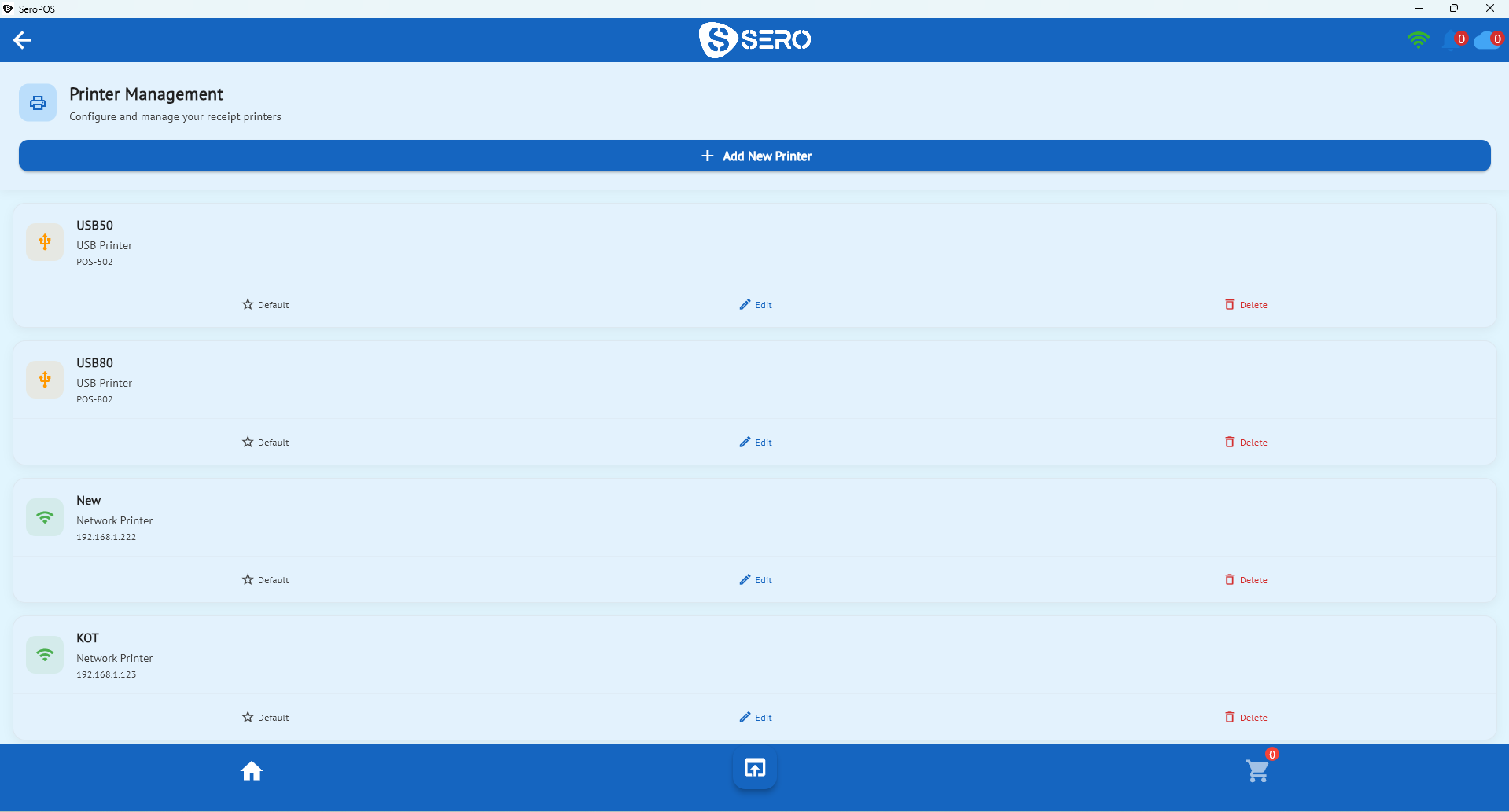
- Pair the receipt printer and print a test receipt
- Configure the kitchen printer or display
- Pair the payment terminal and run a test transaction
- Mount in a stand with power routed cleanly
- Practice with demo data before going live
Security basics
- Guided Access / kiosk mode to lock the device to the POS app
- Separate staff logins with role-based permissions
- Physical security — a locking stand for anything left out overnight
- Device passcode, always
The bottom line
An iPad makes an excellent POS for the great majority of restaurants and shops, especially where mobility matters. Pair it with standard, replaceable peripherals and cloud software you can cancel monthly, and you've avoided the two traps of traditional POS: proprietary hardware and long contracts.
SeroPOS is $30–$50/month and runs on the iPad you may already own — download it and test your setup free for 14 days.